Learn the workflow
How to download a video from an X post: a six-step guide
Follow six screenshots to copy an X post link, find its available MP4 versions, choose a resolution, and finish the download in your browser.
Prefer Chinese? Read the Chinese illustrated guide
Before you begin: check the post
This walkthrough is for a public X post containing a single video. Open the original post and make sure the video plays. Private or deleted posts, image-only posts, and posts with multiple videos may not produce a download page in the current tool. The six screenshots below follow one example; labels and button positions may vary by device, browser, or future X updates.
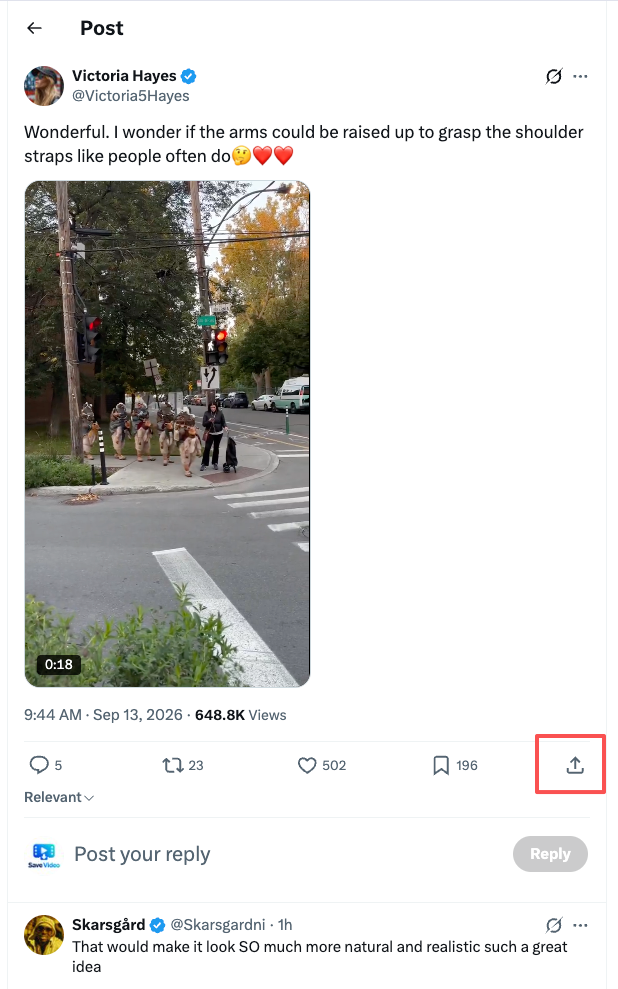
Step 1: click Share below the video post
Go to the individual X post whose video you want to save. Find the Share icon in the action row beneath the post and click it. Starting from the post itself helps you copy its own address, rather than the account profile, a search page, or the video player URL.
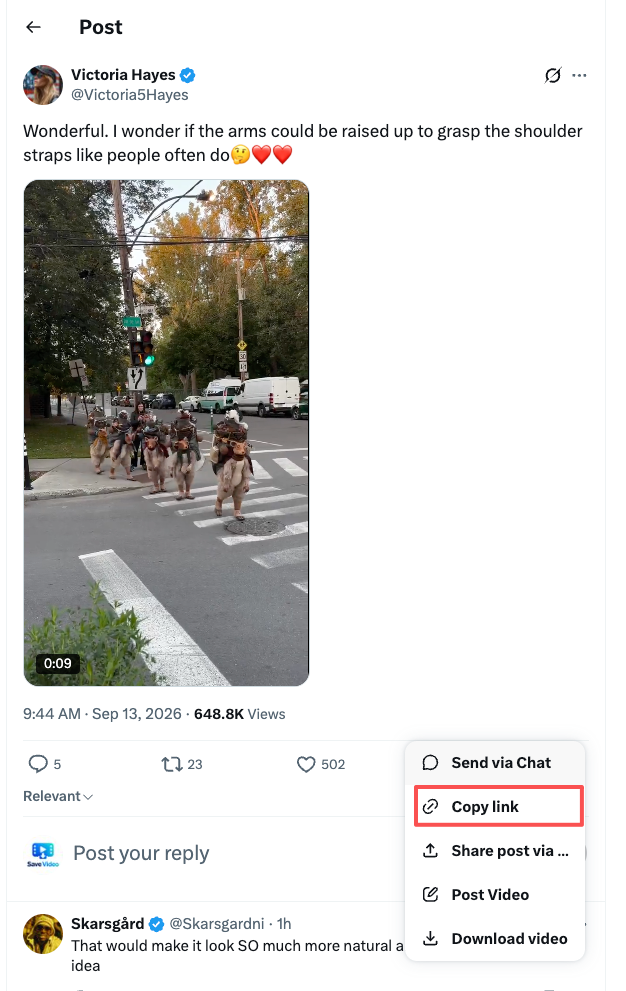
Step 2: select Copy link
In the Share menu, choose Copy link. This copies the address of the X post, not a direct MP4 file. You do not need the menu’s other download or sharing options. A typical address contains x.com/name/status/ followed by a numeric post ID.
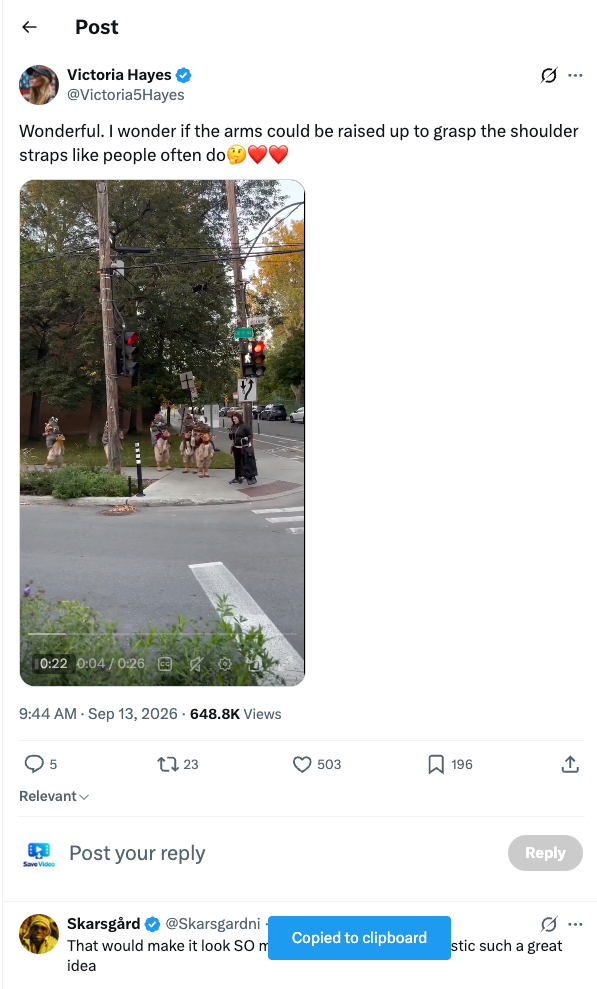
Step 3: confirm the post link was copied
X may show a Copied to clipboard message at the bottom of the screen. Once you see it, switch to XSave and paste the link; there is no need to type the full address by hand. If you later paste an unrelated URL, return to the post and copy it again.
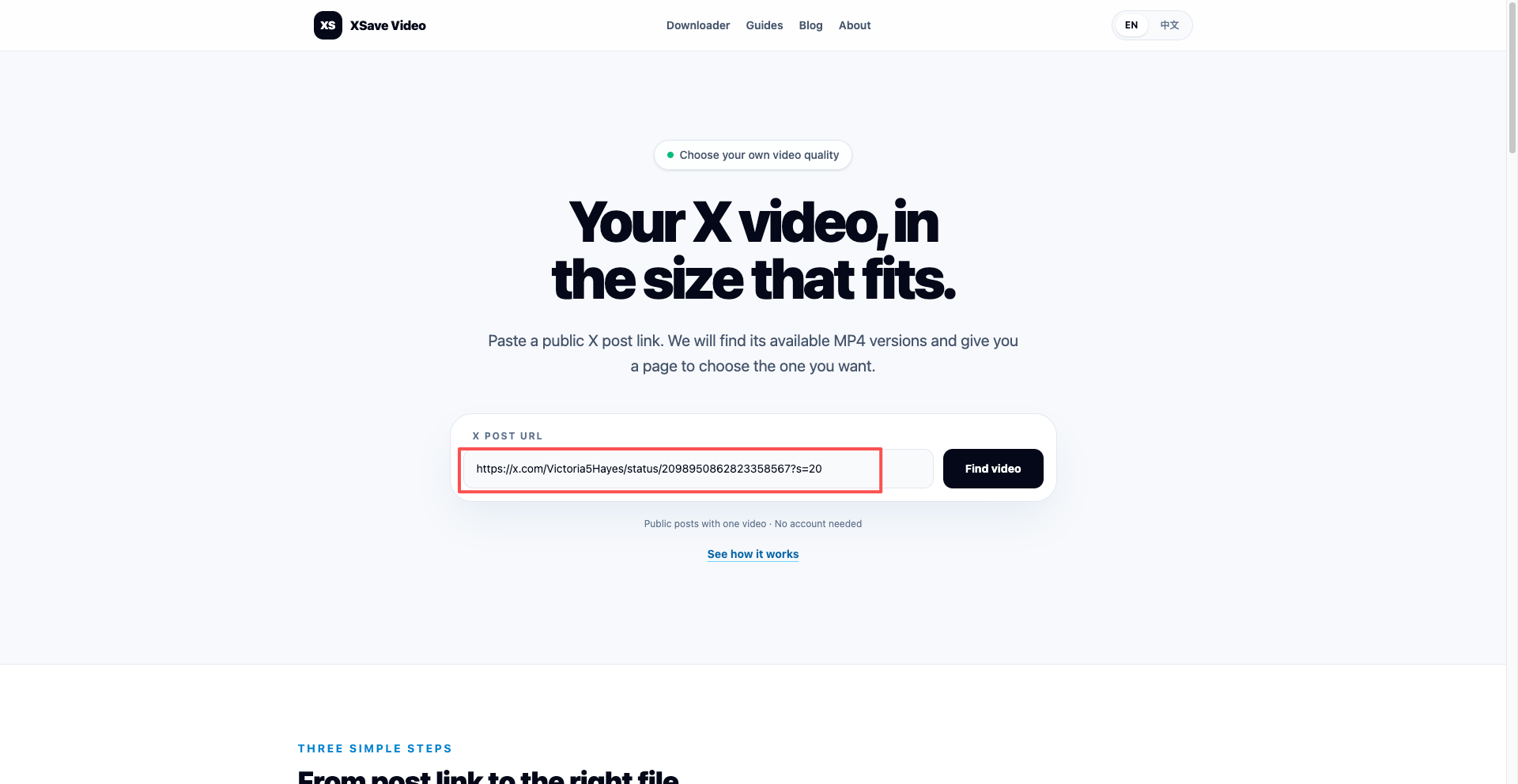
Step 4: paste the post URL into XSave
Open https://asqivoai.dev/ in your browser. Paste the link into the X post URL field, then click Find video. XSave looks up the MP4 versions available for that public post and opens a page where you can choose one. You do not need to create an XSave account.
If the site says the URL is invalid, check that you copied a complete individual post link. It should contain /status/ and a numeric ID; a profile URL, image URL, or direct video.twimg.com media link does not belong in this field.
Step 5: choose the resolution you want
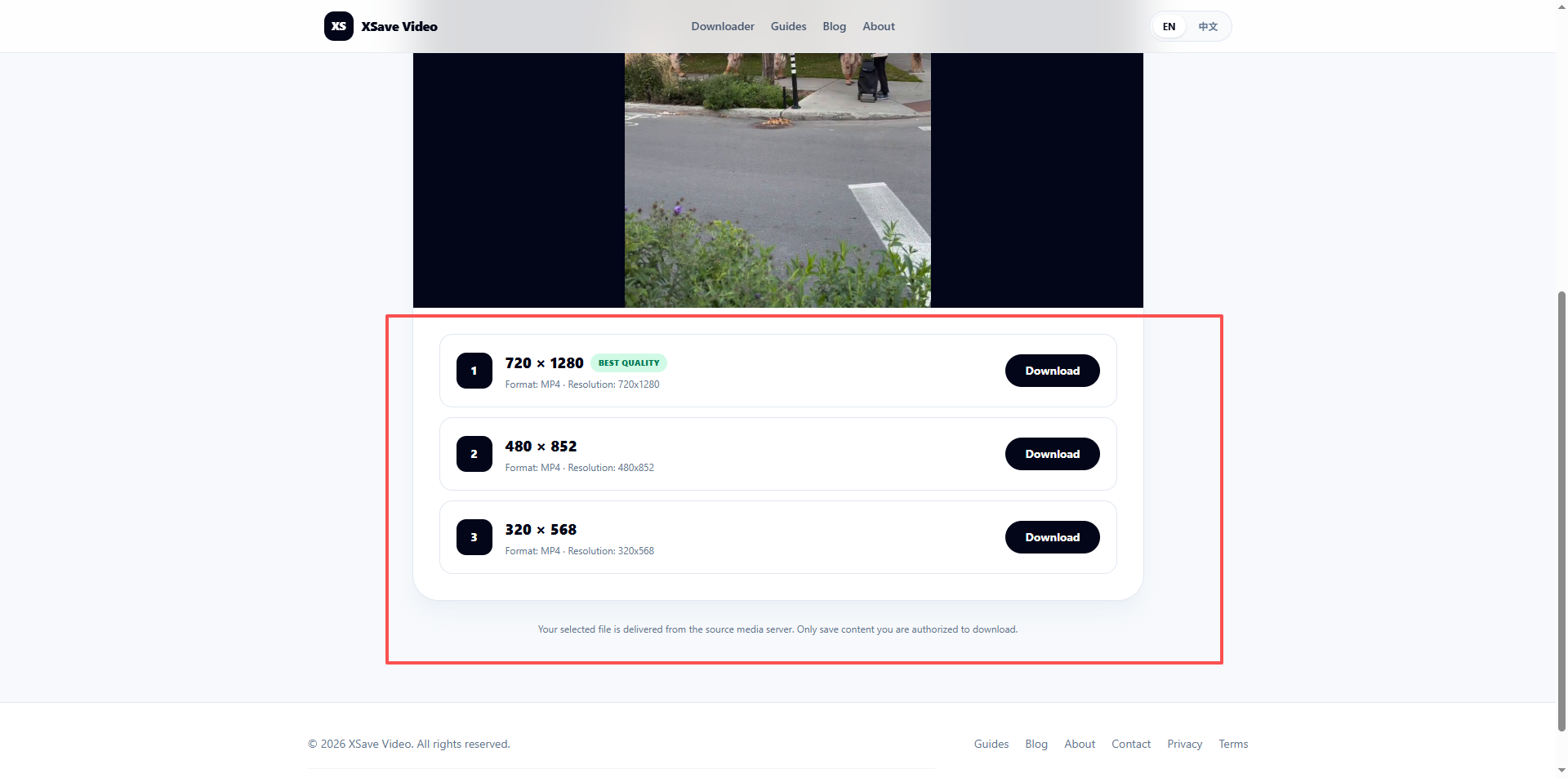
On the download page, first check that the preview matches the post you intended to save. Then review the available MP4 sizes. The example shows three portrait options—720 × 1280, 480 × 852, and 320 × 568—but another post may offer different sizes or a different number of versions. Click Download beside the version you want.
The numbers show width × height in pixels. A larger option can be useful for a big display or later editing, while a smaller one may save data and storage on a phone. The Best quality badge identifies the largest pixel dimensions currently listed; it is not a promise that the original recording is sharp.
Step 6: wait for your browser to finish saving the file
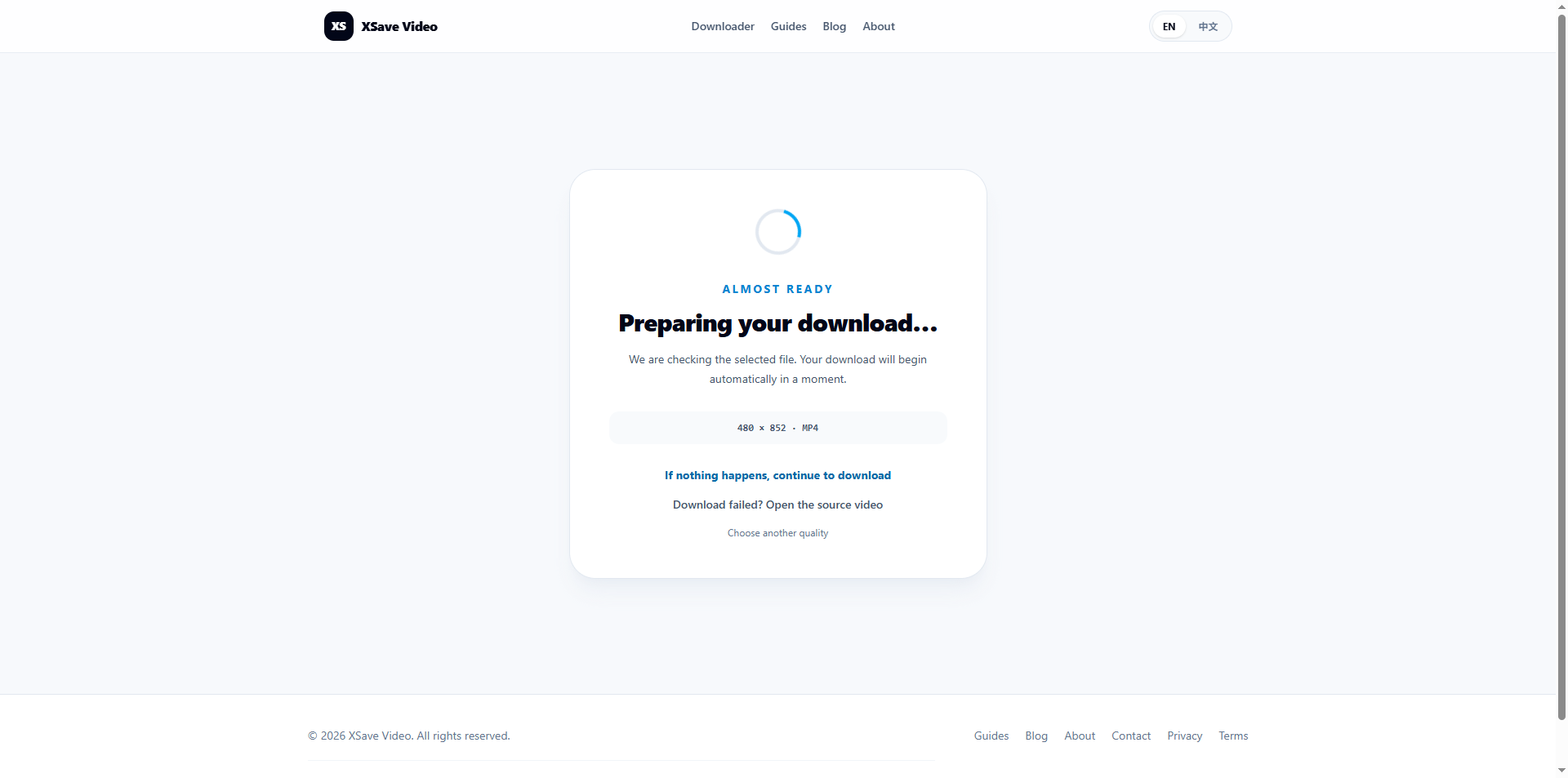
After you click Download, a preparation page appears and XSave attempts to start the selected MP4 download. Seeing Preparing your download does not mean the file is already saved. Open your browser’s downloads list, confirm that a transfer has started, and wait until its status says it is complete. The file normally goes to your browser’s configured download folder.
If nothing starts, use the Continue to download link. If a video opens in a new tab instead, use the video player menu or your browser’s Save video option. Choose another quality takes you back to the list of available sizes.
After downloading: verify and organize the file
Find the completed file in your browser’s downloads list, play it, and check that the picture and duration match the original post. If you save more than one version, a filename with a topic, date, and dimensions—such as demo_2026-09-14_480x852.mp4—will make the versions easier to tell apart. Keep the original post URL with the file so you can revisit its context later.
XSave stores the post information and media addresses needed for the download page; it does not permanently host the complete video. If the original post becomes private or the source media address expires, an old XSave page may still open even though the file is no longer available. Keep your own backup of any content you are authorized to save.
If the download does not work
First make sure the original post is public, its URL is complete, and it contains one video. If the download page opens but one file fails, try another listed resolution and check the error in your browser’s downloads list. A video opening in a new tab is often a browser handling difference, not necessarily a failed lookup.
For a persistent issue, use the contact page and include the XSave page URL, selected resolution, browser and device, and the message you saw. Do not send passwords, browser cookies, or unrelated private files.
Respect the video creator’s rights
Access to a video does not grant permission to repost, edit and distribute, or use it commercially. Save only content you own, have permission to download, or are otherwise allowed to save. Check the original source and relevant rights before sharing or reusing a file. Rights holders can request a download-page review through the contact page.